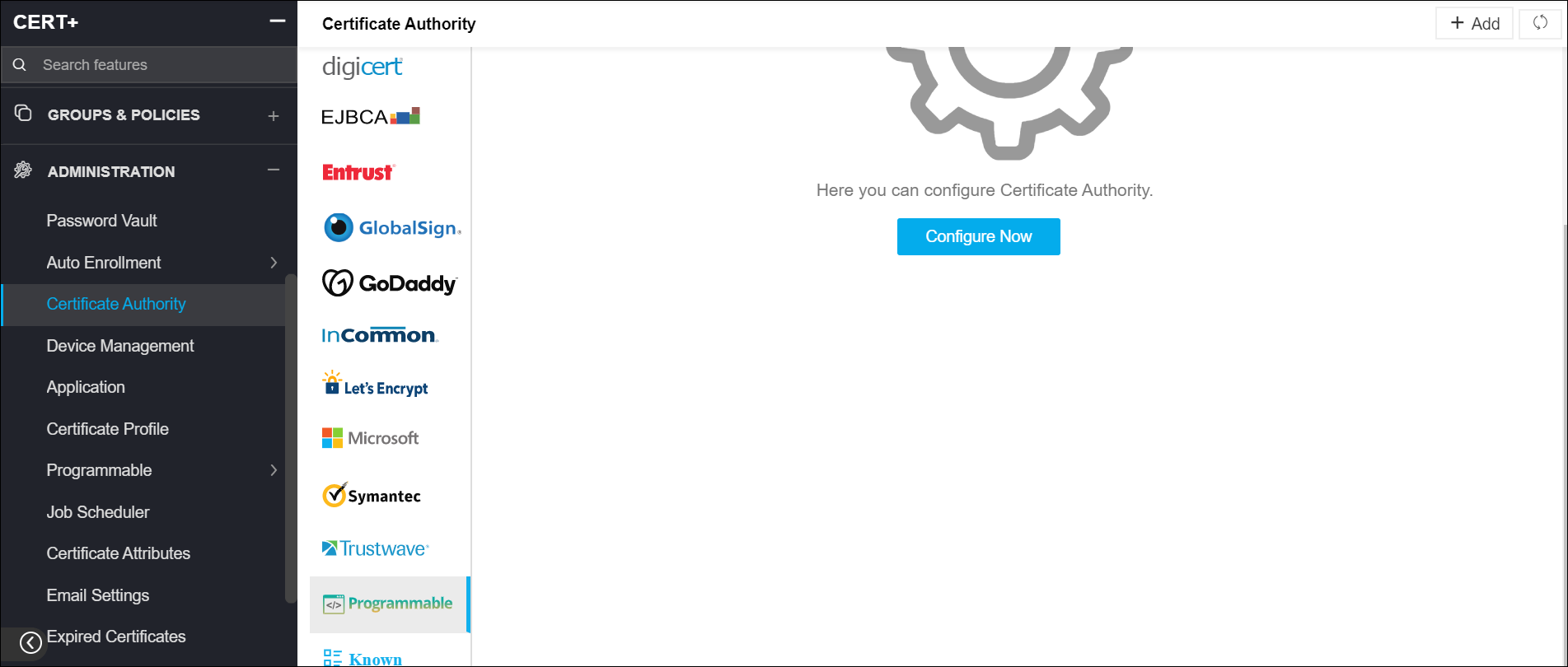
Under Administration, click Certificate Authority.
On the Certificate Authority page, a list of Certificate Authorities is displayed.
Scroll down to the bottom of the list and click Programmable.
Click Configure Now to create a new CA or click Add on the top-right to
add another Programmable CA.
On the details page, under the General Information section, enter the
information in the following fields:
In the Certificate Authority field, provide a name for the certificate
authority.
Click Upload and browse the logo you want to add for the certificate
authority.
In the Name field, provide a name for the new certificate authority to help
users identify it.
From the Purpose/Usage dropdown, select the type of certificate authority or
if the list is extensive, use the search field in the dropdown list to find.
(Optional) Select the CSR Generation checkbox if you want the CSR to be
generated whenever you configure a CA.
Under the CA Configuration section, provide the location of Python script files
(containing the actions to be performed on the templates) in the following fields:
CSR Submission Script
Fetch Script
Renew Script
Reissue
Revoke Script
CA Settings Parameters
Click Save to add the new certificate authority to the AppViewX system.
 and select
CERT+ > Administration.
and select
CERT+ > Administration.