Upload a Certificate Key
-
Click
 and select
CERT+ > Certificate Inventory.
and select
CERT+ > Certificate Inventory.
- Under Certificate Inventory, click Server or Clien t.
- On the Certificate Dashboard, click List on the top-right.
- On the certificate list view, click the Common Name of the certificate for which you want to upload a certificate key.
-
On the certificate topology page, hover over
 on the certificate and click Upload
Key.
on the certificate and click Upload
Key. 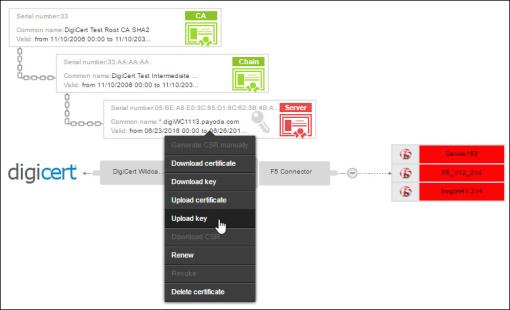 Note: If the key is password-protected, a popup window will appear prompting you to enter the associated password.
 - Click Submit.
-
On the screen that pops up, go to the key you want to upload and click
Open.
- If everything is correct, the key is uploaded to the certificate.
- If the key you are trying to upload does not match the certificate, an error message appears on the top of the screen stating, Certificate and key do not match.